Introduction - Does not work anymore. See Discord for more information.
This guide is based off of a guide originally written inside of a Discord server. If you are having any issues, questions, or just want to chat, it's always available. This gude offers no guarentees of any kind, and you follow it at your own risk.
For troubleshooting, help, or anything else, visit the Discord.
Warnings before you begin
- If you downloaded a .ipa file from a website, got it from a friend, or otherwise recieved it from any source other than your own device, do not complete this tutorial, and delete the file. Modified .ipa files are dangerous, and hard to detect.
- This tutorial will take over an hour for first-time users. Be aware of your own skill level, and do not rush this tutorial, as you may accidentally miss crucial steps.
- This guide is depreciated. Do not follow this guide. Rec Room has blocked MacOS users from logging in.
Getting Started
Step One: Check for compatible Mac
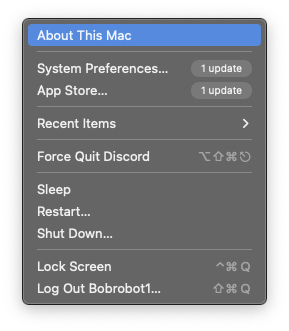
First, Head to the Apple Logo in the upper left of your Mac, and click "About This Mac"
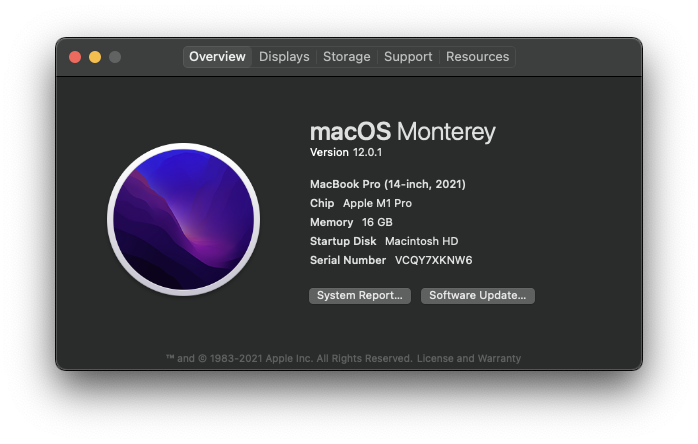
- If your Mac has a processor with Intel in the name, your device is not compatible with this guide.
- If your Mac has a processor with Apple in the name, your Mac is compatible, and you can continue.
Step Two: Back up your iOS Device
If you have not backed up your iOS device to your computer recently, follow this guide.
Step Three: Check for compatible iOS Device
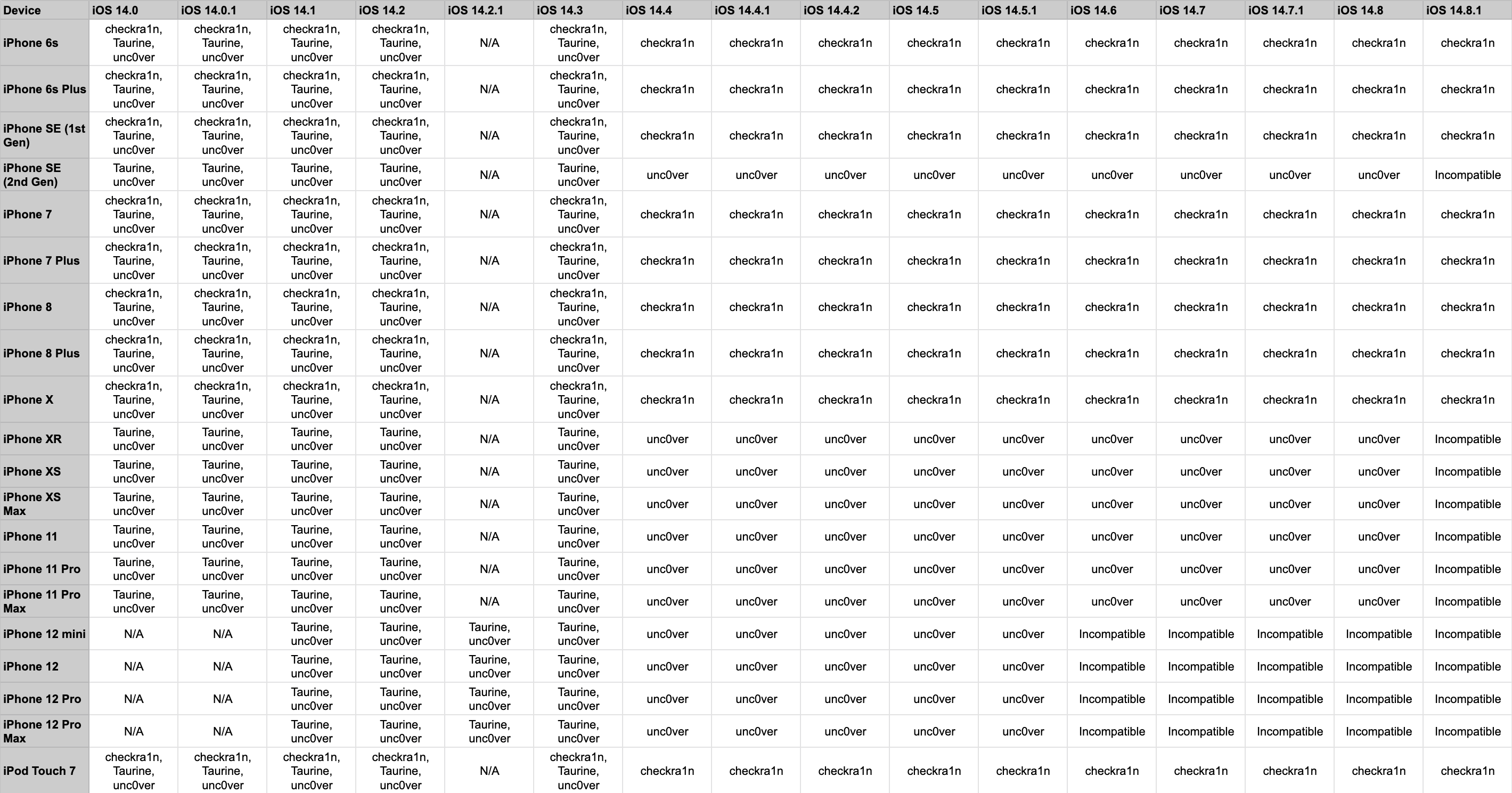
Use the chart below to check for iOS device compatibility.
- If your device is listed as Incompatible, your device is incompatible.
- If your device is listed as unc0ver, follow this guide.
- If your device is listed as Taurine, follow this guide.
- If your device is listed as checkra1n, follow this guide.
- If your device has more than one entry, Taurine > unc0ver > checkra1n. Choose accordingly.
- If your device has a version lower than 14.0, use unc0ver. If it has a version newer than 14.8.1, your device is incompatible.